The Hard Drive Graveyard: Why Modern Video Software Can't Read Your Old Storage Anymore
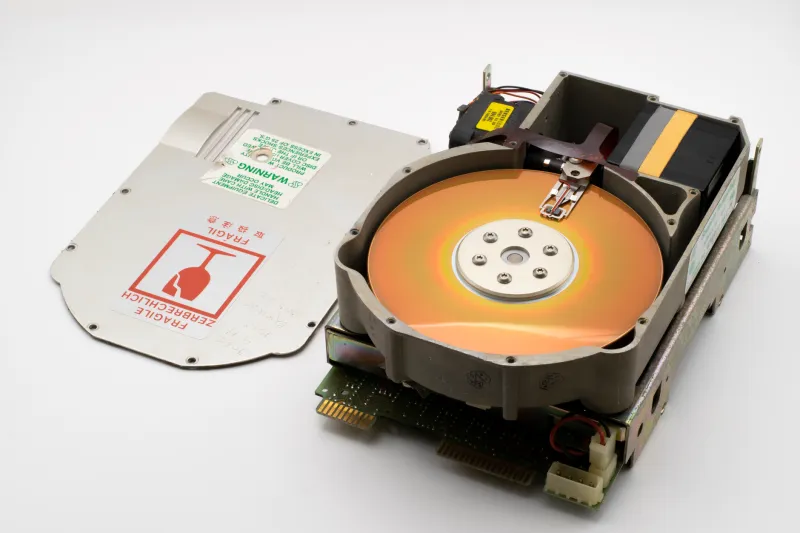
You dig out a hard drive from 2012. It spins up. The light blinks. Windows even makes that little recognition chime. So why does your video converter just... sit there? No files loading, no progress bar, nothing. It's one of the more frustrating experiences in digital media work, and it happens more often than most people realize.
The short answer is that hardware ages in ways that aren't always visible. But the longer answer — the one that actually helps you rescue your footage — is a lot more interesting.
Old Drives Don't Just Wear Out, They Drift Out of Spec
Here's something that doesn't get talked about enough: hard drives and SSDs from the mid-2000s through early 2010s were built around interface standards and firmware assumptions that modern software no longer plays nicely with.
Take USB 2.0 enclosures. Plenty of people still have external drives rattling around in those old plastic shells, and while the drive itself might technically function, the bridge chip inside the enclosure — the tiny piece of hardware that translates between the drive and your computer — can behave erratically with today's operating systems. Windows 10 and 11 have shifted how they handle USB mass storage handshakes, and some of those older bridge chips simply don't respond correctly anymore. Your computer sees something, but it can't reliably read from it.
Then there's the SATA/IDE divide. If your drive predates 2004 or so, it might be running on a Parallel ATA (PATA) interface. Modern motherboards dropped native PATA support years ago, which means you're dependent on adapter cables and third-party drivers that introduce their own layer of instability. Video conversion software that's trying to do intensive read operations from a drive like that is essentially working through two translators simultaneously — and the message gets garbled.
SMART Errors: The Warning System Your Converter Can't Ignore
Self-Monitoring, Analysis, and Reporting Technology — SMART — is built into virtually every hard drive made in the last 25 years. It's designed to flag early signs of failure: reallocated sectors, spin-up time anomalies, uncorrectable read errors.
Here's where it gets relevant to video conversion specifically: many modern video tools, especially professional-grade converters, check SMART status before beginning a long read operation. If the drive is throwing errors — even minor ones that haven't caused obvious problems yet — the software may refuse to proceed, or it may start and then stall mid-conversion when it hits a bad sector.
This isn't the software being dramatic. A four-hour conversion job that fails at the 90% mark because of a read error is genuinely worse than a job that never starts. The software is, in a weird way, protecting you. But it doesn't always tell you why it stopped, which is where the frustration comes from.
You can check your drive's SMART status yourself using free tools like CrystalDiskInfo on Windows or DriveDx on Mac. If you're seeing reallocated sectors climbing or pending uncorrectable sectors, treat that drive like it's already dying — because it basically is.
The Filesystem Problem Nobody Talks About
Beyond the physical hardware, there's a software layer that creates its own incompatibilities: the filesystem.
Old drives formatted as FAT32 or even early NTFS implementations can present quirks that modern video conversion pipelines aren't designed to handle gracefully. FAT32, for instance, has a 4GB file size limit — which means any video file larger than that literally cannot exist on the drive as a single file. Instead, it might be split, fragmented, or stored in a way that looks broken to a converter expecting a standard container format.
Older Mac-formatted drives using HFS (not HFS+, just HFS) are even more problematic. Native Windows support for those filesystems is essentially nonexistent without third-party software, and even then, reliability is sketchy for large sequential reads like video files require.
Practical Steps Before Your Drive Becomes a Paperweight
None of this is meant to make you panic — it's meant to light a fire under you, because the window for rescuing this stuff is genuinely closing.
Step one: Get a read, any read. Before you worry about conversion, focus on getting your files copied off the drive entirely. Use a dedicated disk imaging tool like ddrescue (free, runs on Linux and via bootable USB) to make a sector-by-sector copy of the drive to a healthy modern disk. This approach works even around bad sectors, logging errors as it goes rather than stopping cold.
Step two: Check the enclosure, not just the drive. If you have an older external drive that's misbehaving, try pulling the actual drive out of its enclosure and connecting it directly to your PC via a USB-to-SATA adapter dock. Enclosure failure is surprisingly common and often gets mistaken for drive failure.
Step three: Convert from the copy, not the original. Once your files are safely on a modern, healthy drive, then run them through your video converter. Trying to do both operations simultaneously — reading from a degraded drive while also doing intensive video processing — is asking for trouble.
Step four: Target modern container formats. When you do convert, aim for formats with strong longevity profiles. H.264 in an MP4 container remains the most universally supported option for archival purposes right now. If you're doing serious archival work, ProRes or DNxHD in a MOV or MXF wrapper gives you more headroom for future re-encoding without generational quality loss.
The Bigger Picture on Digital Decay
There's a term archivists use — bit rot — that refers to the gradual degradation of data stored on any medium over time. It happens on hard drives, optical discs, flash storage, and magnetic tape alike. The difference is just the timescale and the failure mode.
For hard drives specifically, the magnetic domains that encode your data can weaken over time, especially if the drive hasn't been powered on regularly. A drive that's been sitting unpowered in a closet for eight years may have lost data even if it never experienced a physical shock or electrical surge.
The cruel irony is that the footage most worth saving — home videos, event recordings, personal projects — tends to live on exactly these kinds of forgotten drives. The stuff you actively use gets migrated naturally. The stuff you meant to get to eventually is the stuff that quietly disappears.
If you've got old drives sitting around, this is your nudge. Not next month. Now. The cost of a USB dock and a few hours of your time is nothing compared to what you lose when that drive finally stops spinning for good.