Big Files, Bigger Problems: What's Really Crashing Your Video Converter (And How to Fix It)
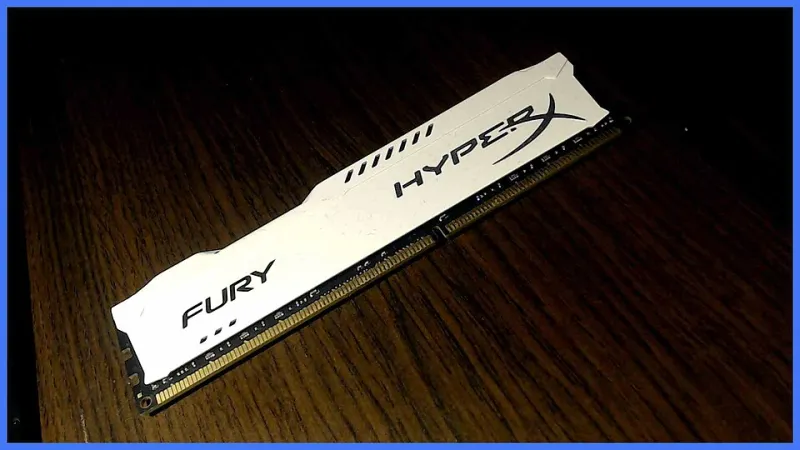
Photo: Zsinytwiki, CC0, via Wikimedia Commons
You're converting a two-hour 4K raw recording — maybe a wedding video, a long-form YouTube piece, a film project you've been editing for weeks. The progress bar crawls forward for 45 minutes, hits somewhere around 60%, and then the whole application just dies. No warning, no useful error message. Just gone.
You restart. You try again. Same thing.
Here's the frustrating truth: most online advice for this situation is basically useless. "Make sure your drivers are updated." "Try restarting your computer." "Reinstall the software." None of that addresses what's actually happening. So let's talk about what is.
Why Large Files Break Things That Small Files Don't
Video converters don't load an entire file into memory at once — that would be impossible for files over a few gigabytes. Instead, they work in chunks, pulling segments of the source file into RAM, processing them, and writing the output incrementally. This is called buffered processing, and it works great in theory.
The problem is that file size doesn't scale linearly with resource demand. A 10GB file doesn't just require twice the resources of a 5GB file — it requires more frequent buffer flushes, more sustained read/write operations, longer periods of simultaneous RAM and CPU pressure, and more complex indexing to keep track of where the converter is in the file. The longer the process runs, the more opportunities there are for something to go wrong.
Files over 4GB hit a particularly nasty wall. That threshold matters because it's the boundary where 32-bit memory addressing breaks down. Some converters — or specific components within them — were built with 32-bit libraries that literally cannot reference memory addresses beyond 4GB. When the process crosses that line, the application doesn't gracefully degrade. It just crashes.
How to Tell If You're Hitting a Memory Ceiling
Before you start tweaking settings, it helps to confirm that memory is actually your problem. Here's a quick diagnostic:
Open Task Manager (Windows) or Activity Monitor (Mac) during your next conversion attempt. Watch your RAM usage as the conversion progresses. If you see available memory dropping steadily and then spiking to near-zero right before the crash, that's your culprit.
Also check your pagefile or virtual memory usage. Windows will start leaning on your pagefile when physical RAM runs low, and that's dramatically slower than real RAM. If your system is swapping aggressively, the converter may time out internal operations waiting on data that's stuck in pagefile limbo.
On Windows, you can also check the Event Viewer (search for it in the Start menu) under Windows Logs > Application. Look for error entries timestamped around when the crash occurred. You'll often see mentions of memory allocation failures or out-of-process exceptions that confirm exactly what broke.
The Setting That Actually Makes a Difference
Most video converters — including HandBrake, FFmpeg-based tools, and several commercial options — let you control how many CPU threads the conversion process uses. This setting is often labeled "threads," "encoding threads," or "worker processes."
Here's the counterintuitive part: using more threads on a large file often makes crashes more likely, not less. Each thread consumes its own slice of memory. Throw eight threads at a 6GB file on a machine with 16GB of RAM, and you've got eight simultaneous processes each trying to buffer and process data. The memory math gets ugly fast.
For large files on systems with 16GB of RAM or less, try dropping your thread count to 2 or 4. Yes, the conversion will take longer. But it'll actually finish, which is better than the alternative.
In HandBrake, this setting lives under Preferences > Advanced. In FFmpeg via command line, you control it with the -threads flag. Third-party GUI tools usually expose it somewhere in their output settings or performance preferences — dig around if it's not immediately obvious.
Adjusting Your System's Virtual Memory Allocation
If reducing thread count helps but doesn't fully solve the problem, the next step is giving Windows more room to maneuver with virtual memory.
Go to Control Panel > System > Advanced System Settings > Performance Settings > Advanced > Virtual Memory. By default, Windows manages this automatically, which sounds convenient but can be sluggish when a process suddenly needs a large burst of additional memory.
Set it manually. A good rule of thumb for video conversion work is to allocate a minimum of 1.5x your physical RAM and a maximum of 3x. So on a 16GB machine, set minimum to 24,000 MB and maximum to 48,000 MB. Make sure this pagefile lives on your fastest drive — ideally an SSD, not a spinning hard drive.
This won't make virtual memory as fast as physical RAM, but it gives your converter a larger safety net when processing pushes past your physical memory ceiling.
Storage Speed Matters More Than You Think
Here's something that doesn't get talked about enough: crashes during large file conversion aren't always RAM-related. Sometimes the bottleneck is storage throughput.
When a converter writes output data faster than your destination drive can accept it, the write buffer fills up. The converter stalls waiting for the drive to catch up. Internal timeouts trigger. The process aborts. From the user's perspective, it looks exactly like a memory crash.
If your source and destination files are both on the same drive — especially a slower mechanical hard drive — move one of them. Keep your source file on one drive and write your output to a different drive, preferably an SSD. This separates the read and write operations so they're not competing for the same hardware bandwidth.
For anyone doing regular large-file conversion work, an NVMe SSD as your working drive is genuinely worth the investment. The throughput difference compared to a SATA SSD (let alone a spinning disk) is substantial enough to affect conversion stability, not just speed.
When the Converter Itself Is the Problem
Sometimes you do everything right and the crashes persist. At that point, it's worth checking whether your converter is a 32-bit application running on a 64-bit system. A 32-bit process has a hard memory cap of around 4GB regardless of how much physical RAM you have. It's not a setting you can change — it's an architectural limitation.
Check the application's properties or the developer's documentation. If it's 32-bit, you need a different tool for large-file work. HandBrake, Avisynth64, and the 64-bit build of FFmpeg are all solid options that can actually address your full system RAM.
A Quick Checklist Before Your Next Big Conversion
- Confirm your converter is a 64-bit application
- Reduce encoding threads to 2–4 for files over 4GB
- Manually set virtual memory to at least 1.5x your physical RAM
- Keep source and destination files on separate drives
- Close other memory-intensive applications before starting
- Monitor RAM and CPU usage during the first few minutes to catch problems early
Large file conversion is genuinely demanding work. Your system is juggling sustained I/O, extended CPU load, and careful memory management for potentially hours at a time. A little upfront configuration goes a long way toward making sure all of that effort actually produces a finished file.