8K Video Conversion Is Breaking Most Setups — Here's How to Actually Make It Work
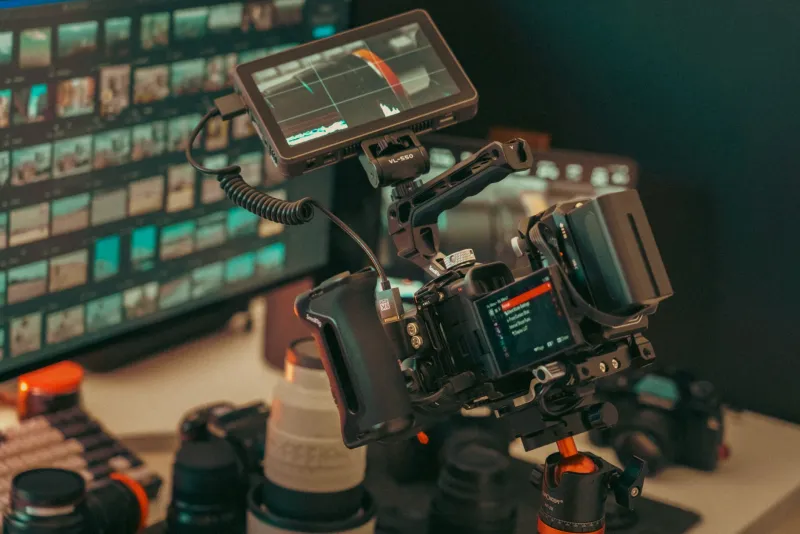
So you shot some footage on a Sony FX9, a RED Monstro, or even one of the newer Samsung flagships that technically claims 8K capture. You drag that file into your converter, hit start, and… the fan on your laptop sounds like a helicopter, the progress bar barely moves, and forty minutes later you're looking at a corrupted output file. Welcome to the 8K wall.
The frustrating part? It's not entirely your converter's fault. 8K video conversion exposes every weak link in your entire pipeline — hardware, software, and workflow alike. Let's talk about what's actually going wrong and what you can do about it without spending a small fortune.
The Numbers Behind the Pain
To understand why 8K is so punishing, you need to appreciate the raw scale of the data involved. A single frame of 8K footage clocks in at roughly 33 megapixels. At 24 frames per second, that's nearly 800 megapixels your system needs to decode, process, and re-encode every single second. Compare that to 4K, which is about 8 megapixels per frame — 8K is literally four times the pixel count.
RAW and high-bitrate 8K files (think 1,000+ Mbps from cinema cameras) can push file sizes north of 10GB per minute of footage. Your converter isn't just doing math — it's doing an enormous amount of math, constantly, while trying not to fall over.
CPU Thermal Throttling: The Invisible Slowdown
Here's something most people don't realize: your processor might technically be capable of handling 8K conversion, but it can't sustain that workload without overheating. When a CPU hits its thermal ceiling — usually somewhere between 90°C and 105°C depending on the chip — it automatically reduces its clock speed to cool down. This is called thermal throttling, and it's one of the biggest reasons your 8K conversion takes three times longer than the estimated time.
You can check if this is happening using free tools like HWMonitor or Intel's XTU. If your CPU temps are spiking and your clock speeds are dropping mid-conversion, throttling is your culprit. Better cooling — whether that's reapplying thermal paste, adding case fans, or investing in a proper aftermarket cooler — can genuinely help here. This is one of the few hardware upgrades that delivers a real, measurable improvement for conversion workloads.
RAM: You Probably Don't Have Enough
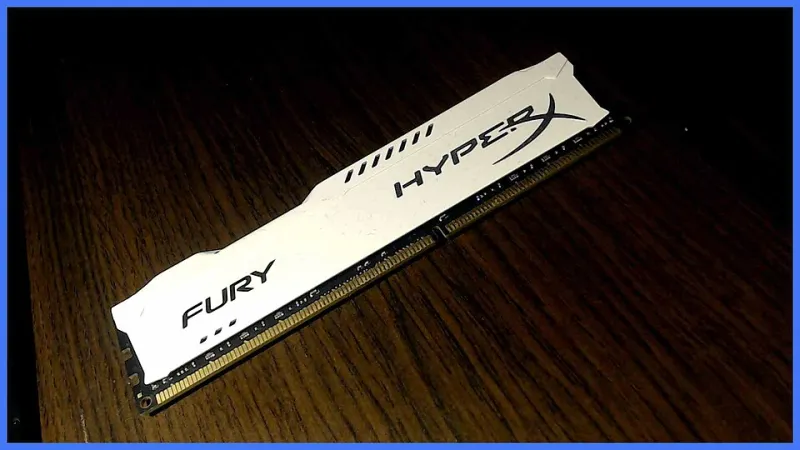
16GB of RAM is generally fine for 4K work. For 8K, it's borderline inadequate. Many 8K conversion pipelines — especially those involving high-bitrate codecs like HEVC (H.265), AV1, or ProRes — need to buffer large chunks of decoded video in memory before processing. If your system runs out of RAM, it starts using your hard drive or SSD as overflow storage (called paging), and that's when conversion speeds fall off a cliff.
For serious 8K work, 32GB is a reasonable floor. 64GB is better if you're also running other applications alongside your converter. This upgrade tends to have a more immediate impact than almost anything else for users who are currently sitting at 16GB.
The Codec Support Gap Nobody Talks About
Not all converters are built to handle the codecs that 8K cameras actually produce. Formats like BRAW (Blackmagic RAW), R3D (RED's proprietary format), and even Apple ProRes RAW require either dedicated decoding libraries or hardware acceleration support that many free and mid-tier converters simply don't have.
HandBrake, for example, is a fantastic converter for a huge range of tasks — but it has limited support for some proprietary 8K camera formats. FFmpeg, when configured correctly, offers much broader codec support, but it's command-line-based and not exactly beginner-friendly. On the commercial side, tools like DaVinci Resolve (which is free for most users), Compressor (Mac only), and Adobe Media Encoder have invested heavily in 8K pipeline support, including hardware-accelerated decode for common 8K formats.
Before you blame your hardware, make sure your converter actually supports the codec your camera used to record. Mismatched codec support can cause failed conversions that look like hardware failures.
GPU Acceleration: Real Help or Marketing Hype?
Converter software often advertises GPU acceleration as a speed solution, and for 8K it can genuinely help — but with caveats. NVIDIA's NVENC encoder and AMD's AMF encoder can dramatically speed up the output encoding stage of conversion, especially when exporting to H.264 or H.265. However, GPU-accelerated encoding often produces slightly lower quality output at equivalent bitrates compared to software (CPU) encoding.
For 8K archival work where quality is the priority, software encoding with a codec like AV1 or HEVC at high bitrate settings is usually the right call, even if it's slower. For fast turnaround on delivery files — say, a 8K to 4K downscale for a client — GPU encoding is a perfectly reasonable trade-off.
Also worth noting: the GPU acceleration benefit largely depends on having a relatively modern card. An NVIDIA RTX 3060 or better, or an AMD RX 6700 XT or better, will see meaningful gains. Older cards may technically support hardware encoding but with enough limitations that the speed improvement is minimal.
The Proxy Workflow: Work Smart, Not Expensive
Here's the honest truth: you don't necessarily need to upgrade your hardware to work with 8K footage effectively. Professional editors have been using proxy workflows for years, and the same approach works beautifully for conversion pipelines.
The idea is simple. You create a low-resolution, low-bitrate "proxy" version of your 8K footage — say, 1080p H.264 — for editing and processing decisions. Your system handles the proxy file easily. Then, when you're ready for final output, you re-link your project to the original 8K files and let the converter run overnight (or over a weekend) to produce the final high-quality export.
In practice, this means your creative workflow stays fast and responsive, and the heavy lifting happens in batch mode when you're not sitting there watching the progress bar. Tools like DaVinci Resolve have proxy workflows built directly into their interface. FFmpeg can batch-generate proxies from a folder of 8K files with a single command.
Practical Steps to Take Right Now
If you're hitting walls with 8K conversion today, here's a prioritized action list:
- Check for thermal throttling using a monitoring tool and address cooling if needed — this is cheap and often high-impact.
- Upgrade to 32GB RAM if you're currently at 16GB — this is usually the highest bang-for-buck hardware upgrade for conversion work.
- Verify codec compatibility between your source files and your converter before assuming it's a performance problem.
- Try a proxy workflow for your editing and processing stages — it costs nothing and can make 8K feel manageable on mid-range hardware.
- Use GPU acceleration for delivery encodes where speed matters more than absolute quality, and save CPU encoding for archival exports.
8K isn't going away — camera manufacturers keep pushing resolution higher, and streaming platforms are slowly building the infrastructure to support it. Getting your conversion workflow sorted now means you won't be scrambling when 8K becomes as routine as 4K is today. The good news is that most of the fixes are less about buying new gear and more about understanding what's actually happening under the hood.