The GPU Acceleration Lie: Why Your Video Converter Is Still Crawling in 2025
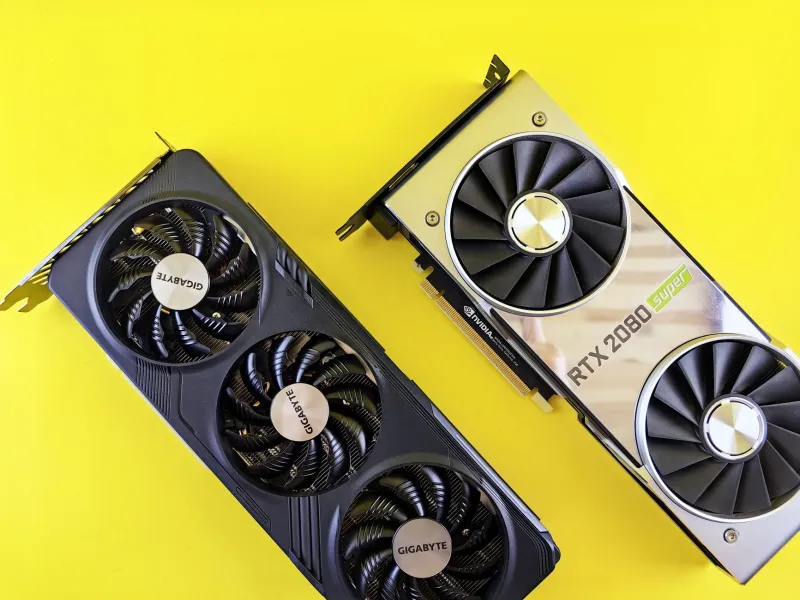
You bought a decent graphics card. You downloaded a video converter that boldly stamps "GPU Accelerated" right on the homepage. You hit export — and then you sit there watching a progress bar inch forward like it's running on a Dell from 2009. What gives?
The uncomfortable truth is that "GPU acceleration" has become one of the most abused buzzwords in video software marketing. It sounds impressive, it sells downloads, and it often means almost nothing. Let's break down exactly what's happening under the hood — and how to figure out whether your converter is actually using your GPU or just borrowing its name.
What Real GPU Acceleration Actually Looks Like
Genuine hardware-accelerated video encoding means the converter is offloading the heavy compression work to dedicated hardware built into your GPU or processor. The three major players here are:
- NVIDIA NVENC — Found on most modern NVIDIA GeForce and RTX cards, NVENC is a dedicated encoding chip that runs completely separately from your GPU's shader cores. It handles H.264, H.265, and on newer cards, AV1 encoding without taxing your main GPU at all.
- Intel Quick Sync — Built into Intel CPUs with integrated graphics, Quick Sync has been around since Sandy Bridge and is genuinely fast. Even if you have a dedicated GPU, your Intel chip may have Quick Sync sitting idle and ready to work.
- AMD VCE/AMF — AMD's Video Coding Engine (now called AMF, or Advanced Media Framework) is baked into Radeon cards and Ryzen processors with integrated graphics. It's less universally supported but absolutely capable of real hardware encoding.
When a converter uses any of these correctly, you should see encode times drop dramatically — sometimes 5x to 10x faster than CPU-only processing. A 4K clip that takes 20 minutes on pure software encoding might finish in 3 minutes with NVENC. That's the real deal.
The Tricks Marketers Use to Fake It
Here's where it gets frustrating. There are several ways a converter can technically involve your GPU without actually delivering meaningful speed improvements.
GPU-accelerated previews, not encoding. Some converters use your GPU to render the preview window smoothly — which does use GPU resources — but then fall back to CPU-based software encoding when you actually export. The GPU is doing cosmetic work, not the hard stuff.
OpenCL and CUDA for effects only. Certain tools use GPU compute (via OpenCL or CUDA) to apply filters, color grading, or noise reduction. That's legitimate GPU use, but it's not the same as hardware-accelerated encoding. Your export is still running through a software codec like x264 or x265, which is CPU-bound by design.
"Hardware acceleration" toggle that doesn't actually change the codec. Some converters have a hardware acceleration checkbox in settings that adjusts GPU memory usage for decoding the source file — not encoding the output. Decoding is much lighter work. Checking that box might make your import slightly faster, but your export pipeline hasn't changed at all.
Defaulting to software codecs even when hardware is available. This one is surprisingly common. A converter might support NVENC in theory, but default to software encoding unless you manually dig into advanced settings and switch the encoder. Most users never do that.
How to Actually Verify What Your Converter Is Doing
Don't take the marketing page's word for it. Here are real ways to check.
Use GPU monitoring while encoding. Open Task Manager (Windows) or Activity Monitor (Mac) and watch your GPU usage during an export. If you're seeing the "3D" or "Compute" activity spike close to 100%, that's a good sign. But also look for a specific "Video Encode" row in Task Manager's GPU section — on Windows 10 and 11, this shows dedicated encoder utilization separately. If Video Encode stays at 0% while your CPU cores are maxed out, your converter is lying.
Try GPU-Z or HWiNFO64 for deeper monitoring. These free tools show NVENC, Quick Sync, or VCE utilization directly. Run an encode and watch the encoder-specific load. Zero activity there means zero hardware acceleration.
Check the converter's output log or console. Many tools, especially open-source ones like HandBrake, print the encoder being used right in the activity log. Look for entries like h264_nvenc, h264_qsv, or h264_amf versus just libx264. The latter is software. If you see libx264 or libx265, you're on CPU regardless of what the UI claims.
Run a timed benchmark yourself. Convert the same 5-minute 4K clip twice — once with hardware acceleration enabled and once with it disabled (if the option exists). If the times are within 10% of each other, the "hardware" mode isn't doing much.
What to Look for in a Converter That Actually Delivers
Not every converter is pulling a fast one. Some genuinely implement hardware encoding well. When evaluating a tool, look for these specifics:
- Explicit mention of NVENC, Quick Sync, or AMF by name (not just "GPU acceleration")
- The ability to select your hardware encoder from a dropdown in output settings
- Visible encoder logs showing which codec pipeline is active
- A meaningful speed difference in real-world tests
HandBrake, for example, is transparent — it shows you exactly which encoder you've selected and logs every step. Commercial tools like Movavi and VideoProc have improved their hardware encoder implementations significantly and let you switch between them. Others, particularly some free browser-based converters, are almost always CPU-only regardless of claims.
The Quality Trade-Off Worth Knowing About
One fair caveat: hardware encoders do sometimes produce slightly lower quality output at equivalent bitrates compared to a software encoder like x265 running on full CPU. NVENC has improved enormously on RTX 30 and 40 series cards, but at lower bitrates on older hardware, software encoding still edges it out on quality. The trade-off is speed versus quality, and for most everyday conversion tasks — social media uploads, archiving, streaming prep — the hardware output is more than good enough.
If you're doing critical color work or archiving masters for long-term storage, software encoding with careful bitrate settings may still be your best bet. But for the other 90% of what most creators and casual users need, a converter that properly uses NVENC or Quick Sync will save you enormous amounts of time.
The Bottom Line
GPU acceleration is real, it's fast, and it works — when it's actually implemented. The problem is that the label has been slapped onto features that have nothing to do with hardware encoding, leaving users confused about why their expensive GPU isn't helping.
Don't trust the badge on the download page. Open Task Manager, watch the Video Encode counter, check the logs, and run your own timed test. Your GPU has a dedicated encoder sitting inside it waiting to work. Make sure your converter is actually using it.